How to Self-Host Coolify: A Complete Guide
Learn how to install and configure Coolify, the open-source alternative to Heroku, Vercel, and Netlify. Deploy applications, databases, and 280+ services on your own infrastructure.

Coolify is an open-source, self-hostable alternative to platforms like Heroku, Vercel, and Netlify. It lets you deploy applications, databases, and services on your own infrastructure through a clean, modern web interface. No more vendor lock-in, no more surprise bills, and complete control over your data.
If you're reading this on selfhostyourself.com, you're already experiencing Coolify in action. This website runs on Coolify, and after trying various self-hosting solutions over the years, we've chosen Coolify as our go-to platform, and we're honestly in love with it.
In this guide, we'll walk you through everything you need to get Coolify up and running on your own server. Whether you're a seasoned sysadmin or just getting started with self-hosting, we've got you covered.
What is Coolify and why should you care?
Coolify wraps Docker, reverse proxying, SSL certificates, and server management into an intuitive dashboard. Created by András Bácsai in 2021 and licensed under Apache-2.0, the current version (v4) represents a complete rewrite with a PHP/Laravel backend and a polished frontend that rivals any commercial PaaS.
The platform supports virtually any language or framework: Node.js, Python, PHP, Go, Ruby, static sites, and anything that runs in Docker. You can deploy directly from GitHub, GitLab, Bitbucket, or Gitea with push-to-deploy functionality. It even supports automatic pull request preview deployments for testing changes before merging.
With over 47,000 GitHub stars, 280+ one-click services, and an active Discord community of thousnad members, Coolify has proven itself production-ready for indie hackers, startups, and teams who want the convenience of managed platforms without the costs.
How does it compare to the alternatives?
| Feature | Coolify | Heroku | Vercel | Netlify | CapRover |
|---|---|---|---|---|---|
| Self-hosted | Yes | No | No | No | Yes |
| Monthly cost | Server only (~$5) | $25+ | Tier-based | Tier-based | Server only |
| Full backend support | Yes | Yes | Limited | Limited | Yes |
| Built-in databases | Yes | Add-ons only | No | No | Yes |
| Docker Compose support | Full | No | No | No | Limited |
| Modern interface | Yes | Yes | Yes | Yes | Basic |
Vercel and Netlify are great for frontend and Jamstack projects but lack native database support and full backend capabilities. Heroku offers similar functionality but at significantly higher costs. CapRover is the closest self-hosted competitor, but Coolify surpasses it with a more modern interface, better documentation, and more active development.
Server requirements
Before diving into the installation, let's make sure you have the right hardware.
Hardware specifications
| Resource | Minimum | Recommended |
|---|---|---|
| CPU | 2 cores | 4+ cores |
| RAM | 2 GB | 8 GB |
| Storage | 30 GB | 80-160 GB NVMe SSD |
| Architecture | AMD64 or ARM64 | AMD64 preferred |
These minimums are enough for Coolify itself plus a few small applications. In our experience, a production setup running several Node.js apps, static sites, Plausible Analytics, Uptime Kuma, Ghost, and multiple databases uses roughly 3.5 GB RAM and 20-30% CPU on a 4-core/8GB server.
Supported operating systems
Coolify's installation script works with most Linux distributions:
- Ubuntu LTS (20.04, 22.04, 24.04 recommended)
- Debian (all versions)
- CentOS, RHEL, Fedora, AlmaLinux, Rocky Linux
- SUSE-based distributions
- Alpine Linux and Arch Linux
- Raspberry Pi OS (64-bit only, Lite version recommended)
The critical requirement is Docker Engine 24 or higher. Note that Docker installed via snap is explicitly unsupported.
Where to host Coolify
Coolify can run on any server that meets the hardware requirements: a VPS from a cloud provider, a dedicated server in a data center, or your own hardware at home (homelab).
Cloud VPS options:
- Hetzner is Coolify's officially recommended provider and offers excellent value for money. Their plans start at around €3.49/month for 2 vCPU, 4 GB RAM, and 40 GB NVMe storage.
- DigitalOcean provides a 1-Click Coolify Marketplace app that simplfies deployment. Pricing starts at $4/month, and new users get $200 credit for 60 days.
- Vultr has a global presence with 32 locations worldwide, starting at $5/month.
- OVHcloud is another solid choice, offering reliable service, competitive pricing, and most plans with unlimited traffic. Their VPS offerings start around €4/month.
Self-hosted on your own hardware:
If you have a homelab or on-premise server, you can install Coolify on any machine running a supported Linux distribution. Just make sure your router allows incoming connections on the required ports (22, 80, 443), and consider using a dynamic DNS service if your ISP doesn't provide a static IP address.
Pre-installation preparation
Server checklist
Before running the installer, make sure your server meets these requirements:
- Fresh server recommended (though not mandatory)
- Root access available
- SSH enabled with no passphrase on the SSH key
- curl installed (usually pre-installed on most distributions)
Firewall configuration
Open these ports in your cloud provider's firewall. We recommend using your provider's firewall interface rather than UFW, since Docker's NAT-based iptables rules can bypass UFW.
| Port | Purpose | Required |
|---|---|---|
| 22 | SSH access | Always |
| 80 | HTTP traffic, Let's Encrypt | Always |
| 443 | HTTPS traffic | Always |
| 8000 | Coolify dashboard | Before custom domain setup |
| 6001 | Real-time communications | Before custom domain setup |
| 6002 | Terminal access | Before custom domain setup |
After you configure a custom domain with SSL, you can close ports 8000, 6001, and 6002 for improved security.
Domain preparation (optional but recommended)
While you can access Coolify via your server's IP address, we recommend setting up a domain for production use. In your DNS provider, create these records:
A record: coolify.yourdomain.com → YOUR_SERVER_IP
A record: *.yourdomain.com → YOUR_SERVER_IP (wildcard for deployed apps)
If you're using Cloudflare, set the SSL/TLS mode to "Full (strict)" to avoid redirect loops.
Installing Coolify
Running the installation script
The installation takes about 2-5 minutes. Connect to your server via SSH and run:
curl -fsSL https://cdn.coollabs.io/coolify/install.sh | sudo bash
If you're already logged in as root, you can omit sudo:
curl -fsSL https://cdn.coollabs.io/coolify/install.sh | bash
What happens during installation
The script performs these steps automatically:
- Installs required packages (curl, wget, git, jq, openssl)
- Installs Docker Engine 24+
- Creates the directory structure at /data/coolify/
- Generates Ed25519 SSH keys for server communication
- Downloads configuration files from Coolify's CDN
- Generates secure values for all passwords and secrets
- Creates an attachable Docker network
- Pulls and starts the Coolify containers
When complete, you'll see:
Congratulations, Your Coolify instance is ready to use.
Please visit http://YOUR_SERVER_IP:8000 to get started.
Installation options
You can pre-configure the admin account during installation:
env ROOT_USERNAME=admin \
[email protected] \
ROOT_USER_PASSWORD=SecurePassword123 \
bash -c 'curl -fsSL https://cdn.coollabs.io/coolify/install.sh | bash'
To disable automatic updates:
env AUTOUPDATE=false bash -c 'curl -fsSL https://cdn.coollabs.io/coolify/install.sh | bash'
To install a specific version:
curl -fsSL https://cdn.coollabs.io/coolify/install.sh | bash -s 4.0.0-beta.400
Post-installation configuration
First-time access
Navigate to http://YOUR_SERVER_IP:8000 immediately after installation. This is important: the first person to register becomes the administrator with full system access, so create your account right away.
The onboarding wizard will guide you through:
- Creating your admin account
- Selecting the localhost server (where Coolify runs)
- Creating your first project
- Adding your first resource
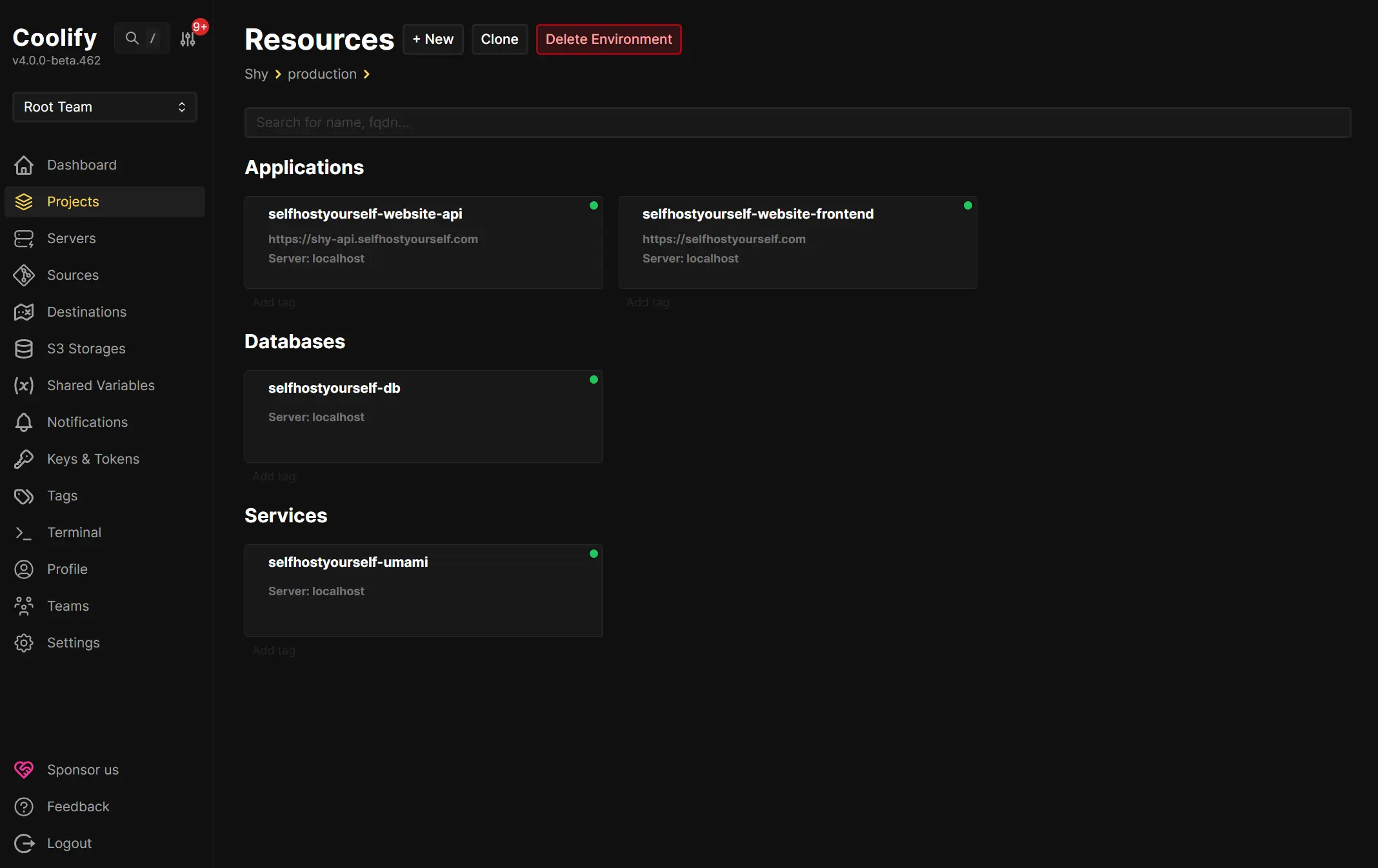
Setting up your custom domain with SSL
Once you're logged in:
- Navigate to Settings in the sidebar
- Find the Instance Domain field
- Enter your domain with https prefix:
https://coolify.yourdomain.com - Save and wait 2-5 minutes for Let's Encrypt certificate generation
Coolify uses Traefik as its reverse proxy, which handles SSL certificates automatically. Certificates are valid for 90 days with automatic renewal.
If Let's Encrypt fails, check that ports 80 and 443 are open and that your DNS records point to your server's IP. You can view proxy logs under Servers → Proxy → Logs.
Essential settings to configure
After your domain is working:
- Enable Two-Factor Authentication (2FA) in your profile settings
- Generate API tokens for CI/CD integration under Settings → Security
- Configure notifications (Discord, Telegram, Slack, or email)
- Set up backup storage by connecting S3-compatible storage
Once everything is working with HTTPS, close ports 8000, 6001, and 6002 in your firewall.
Deploying your first application
Quick test with a static site
Let's verify everything works by deploying a simple static site:
- Select your project from the dashboard
- Click + New → Public Repository
- Select localhost as the server
- Paste this URL:
https://github.com/coollabsio/coolify-examples/tree/static - Click Check Repository
- Enable the "Is it a static site?" toggle
- Set Publish Directory to
/dist - Click Deploy
Watch the build logs in real-time. When complete, click Open Application to see your deployment at the auto-generated URL.
Deploying from GitHub
For public repositories, simply paste the URL and configure your build settings.
For private repositories, you have two options:
GitHub App (recommended): Navigate to Sources → + Add → GitHub App, complete the OAuth flow, and grant repository access. This enables automatic deployments on push.
Deploy Key: Add your SSH private key under Private Keys, copy the public key to your repository's deploy keys on GitHub, then use the SSH clone URL.
Docker and Docker Compose deployments
For Docker-based projects, select the appropriate build pack:
- Dockerfile: Specify the path (default /Dockerfile) and exposed ports
- Docker Compose: Point to your compose file; Coolify handles routing automatically
One tip: don't explicitly define host port mappings in your compose file. Let Coolify manage routing through domain assignment instead.
Configuring environment variables
Access the Environment Variables tab in your application settings. Each variable can be marked as:
- Available at runtime (injected into the running container)
- Available at build time (included during Docker build)
- Locked (redacted from deployment logs, use for secrets)
Coolify provides built-in variables like $COOLIFY_FQDN, $COOLIFY_URL, and $SOURCE_COMMIT for dynamic configuration.
Setting up custom domains for your services
When you deploy an application, Coolify automatically assigns a URL using sslip.io (something like http://abc123.YOUR_IP.sslip.io). This is convenient for testing, but for production you'll want your own domain.
Pointing a domain to your application
First, add a DNS record with your domain provider:
A record: myapp.yourdomain.com → YOUR_SERVER_IP
If you set up a wildcard record earlier (*.yourdomain.com), subdomains will already resolve to your server.
Then, in Coolify:
- Navigate to your application
- Go to the Settings tab (or the main configuration screen)
- Find the Domains field
- Enter your custom domain:
https://myapp.yourdomain.com - Save the configuration
- Redeploy the application (or wait for the proxy to pick up the changes)
Coolify will automatically request an SSL certificate from Let's Encrypt for your new domain. This usually takes 1-2 minutes. You can check the status under Servers → Proxy → Logs if something seems wrong.
You can also add multiple domains to a single application, which is useful if you want both www and non-www versions, or if you're migrating form an old domain.
What to host on your new Coolify instance
Now that you have Coolify running, what should you deploy? The platform offers 280+ one-click services accessible via + New → Services, but here are some ideas to get you started.
If you're looking for analytics, Umami and Plausible are both excellent privacy-focused alternatives to Google Analytics. Umami is lighter weight, while Plausible offers more features and a beautiful interface.
For monitoring and uptime tracking, Uptime Kuma is fantastic. It gives you a beautiful status page and supports notifications through dozens of channels.
Content management is well covered too. Ghost is perfect for blogs and newsletters with built-in monetization. WordPress is available in several configurations if that's your preference. For headless CMS needs, both Strapi and Directus work great with Coolify.
Productivity tools like Nextcloud (file sync and collaboration) and n8n (workflow automation similar to Zapier) are popular choices that run well on modest hardware.
Developers can self-host Gitea or Forgejo as lightweight GitHub alternatives, along with Code Server for VS Code in the browser.
All the major databases are available as one-click deployments: PostgreSQL, MySQL, MariaDB, MongoDB, Redis, and ClickHouse. Each supports automated backups to S3-compatible storage.
Troubleshooting common issues
Installation problems
If the script fails, run it in verbose mode to see what's happening:
curl -fsSL https://cdn.coollabs.io/coolify/install.sh -o install.sh
bash -x install.sh 2>&1 | tee installation-debug.log
If containers are missing after installation:
docker ps -a --filter "name=coolify"
cd /data/coolify/source
docker compose --env-file .env -f docker-compose.yml -f docker-compose.prod.yml up -d --force-recreate
HTTP errors
502 Bad Gateway usually means the proxy can't connect to your application. Check that the Port Exposes field matches your app's listening port, and make sure your application binds to 0.0.0.0 rather than localhost.
503 Service Unavailable indicates Traefik can't find healthy containers. Check container health with docker ps and verify your DNS records.
504 Gateway Timeout is often caused by custom Docker networks isolating the proxy. Let Coolify manage networks automatically.
SSL certificate issues
If Let's Encrypt fails:
- Verify ports 80 and 443 are open
- Check proxy logs: Servers → Proxy → Logs
- For Cloudflare users, disable the proxy or use DNS challenge
- Delete corrupted certificates if needed:
rm /data/coolify/proxy/acme.json - Restart the proxy from the dashboard
Getting help
The Coolify community is active and helpful:
- Discord server with 19,000+ members
- GitHub Issues for bug reports
- GitHub Discussions for general questions
- Official documentation at coolify.io/docs
When asking for help, include your application logs, proxy logs (docker logs coolify-proxy), and relevant configuration screenshots.
Conclusion: What will you build?
You now have a fully functional Coolify instance ready to deploy applications. The 5-minute installation, automatic SSL, and hundreds of one-click services remove most of the traditional friction from self-hosting.
So what will you do with your new Coolify server? You could start by hosting some essentials like Uptime Kuma to monitor your other services, Plausible or Umami for privacy-friendly analytics, or maybe a Ghost blog to share what you're building.
Whatever you choose to deploy, you're now in complete control of your infrastructure. No vendor lock-in, no surprise bills, and your data stays on your servers.
Happy self-hosting!
This guide is maintained by the selfhostyourself.com team. If you found it helpful, check out our directory of self-hosted services for more ideas on what to run on your new Coolify instance.